Features · Sources
The water heater receipt is in your inbox. The manual is in a drawer. The inspection is a PDF you haven’t opened since closing. Sources is where all of it comes in: accounts you link once, the things only you have and hand over, and the public records Eave looks up for your address on its own.


The scattered-record problem
Receipts sit in email. Manuals sit in a drawer. The contractor who fixed the sewer line is a business card on the fridge. The flood zone is on a federal map you’ve never looked at. None of it is lost, exactly. It just isn’t in one place when the furnace stops on a Sunday.
Sources treats all of it the same way. A linked account, a photo you take, and a public record are each one more source for the same home record, and each one shows where it came from.
One connection does most of the work. Start with Gmail, the inspection report, or a single receipt.
How it works
Three kinds of source
Some things Eave can read for you once you say yes. Some things only you have. And some things are public record for any address. They count the same: each is a way in to one record of the home.
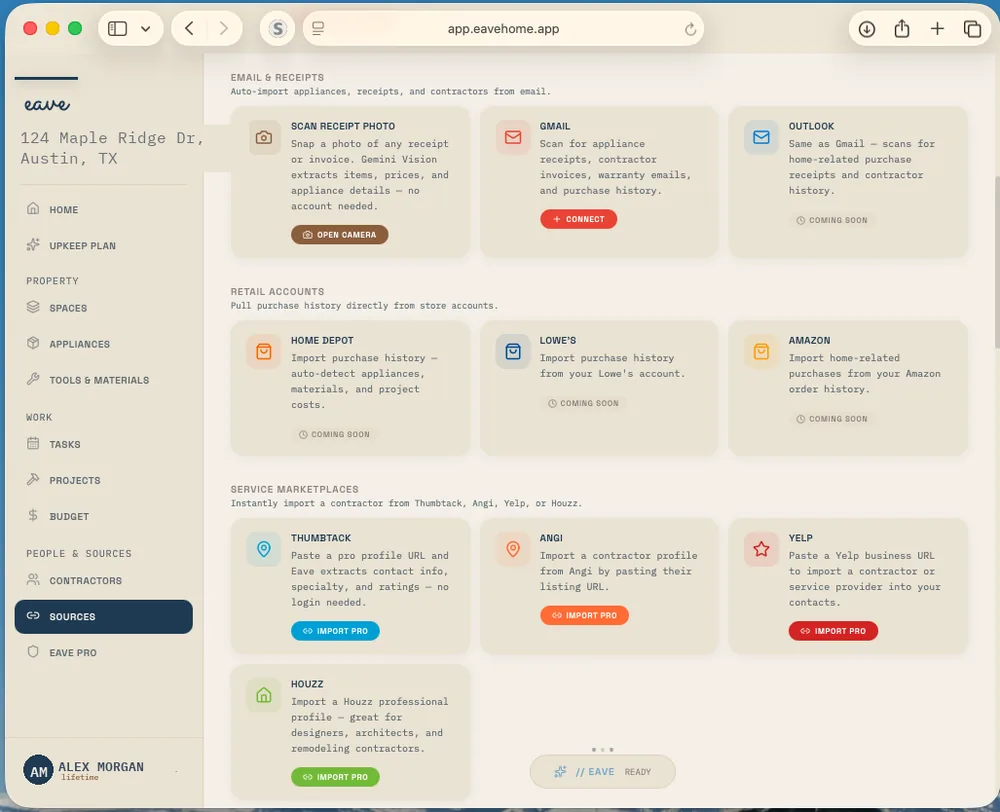
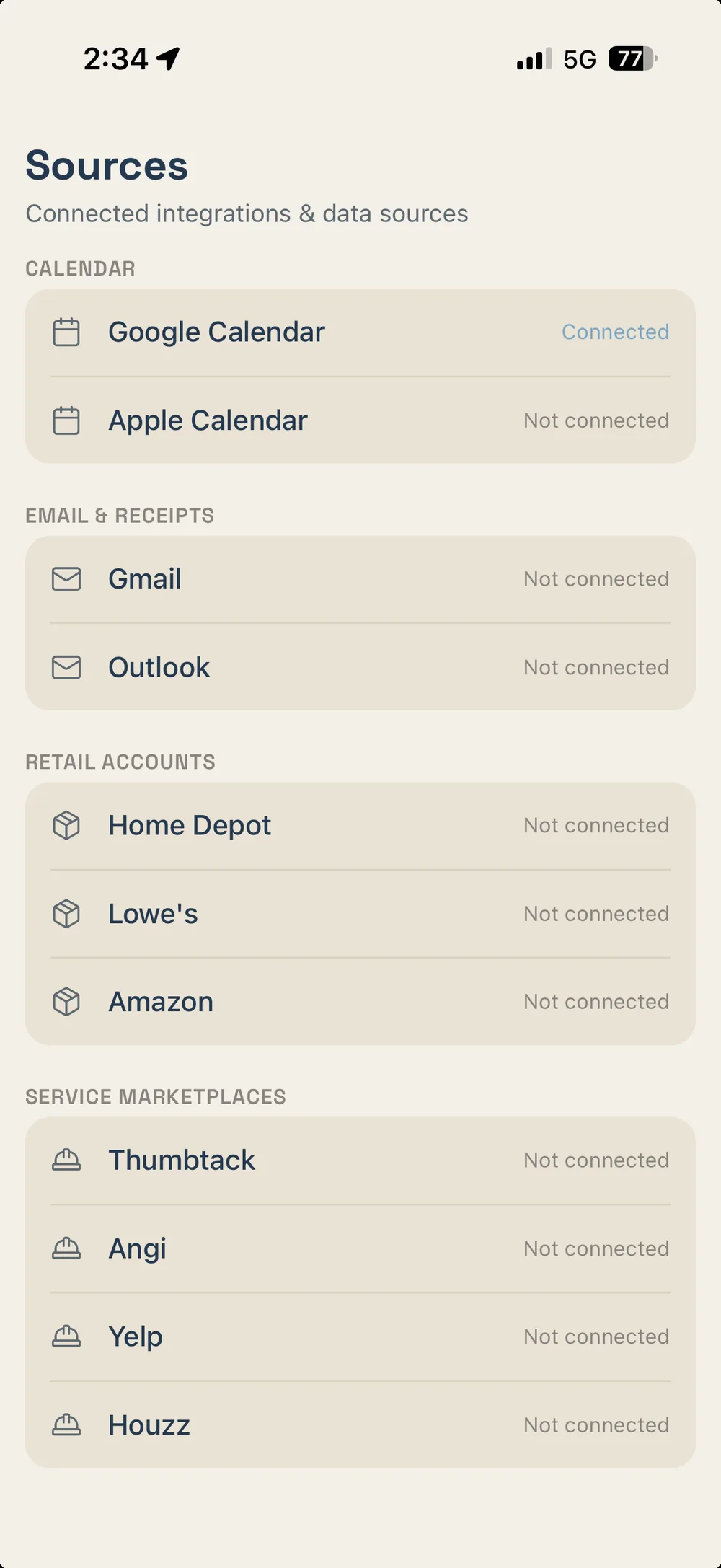
Gmail, Google Calendar, SmartThings, your Amazon order history, and pros from Thumbtack, Angi, Yelp, and Houzz. Each one reads for you after you say yes.
WHAT CONNECTS →A receipt photo, a business card, a photo of a room, the inspection report, the manuals and the policy, a note you say out loud. No account knows these. You do.
WHAT YOU CAN HAND OVER →Flood, fire, and seismic zones, soil, air quality, and the utilities that serve the address, looked up from the address alone. Nothing to link.
WHAT EAVE LOOKS UP →Accounts you link
A connected account is something Eave reads after you authorize it. Where it connects, it reads; it doesn’t send, post, or change anything on the other end.
Google sign-in, read-only. Scan your inbox and Eave reads the last year of receipts, orders, and invoices, then shows each one for you to Save or Skip.
Read-onlyNo store login needed. Their order emails come in through the Gmail scan like any other receipt.
Through GmailDownload the order-history file Amazon gives you and import it. Home purchases go straight into your purchase history.
Order-history fileYour upkeep tasks go out to Google Calendar as recurring all-day events. It runs one way: Eave to the calendar. For Apple Calendar or any other, download an .ics file of the schedule.
One wayPaste a pro’s profile link, confirm what Eave read, and they’re saved to your Contractors.
Profile linkA one-time device import with a personal token Eave doesn’t keep. You pick which devices come in, and they’re added to Appliances.
You pick the devicesSources · review

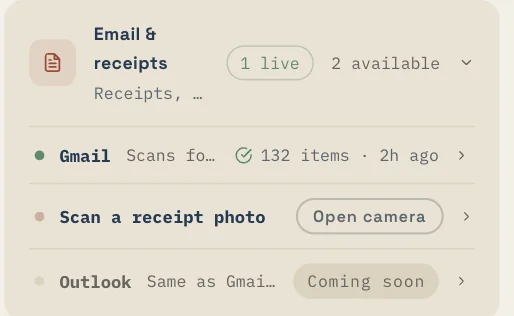
Gmail does the reading; you make the call. The Sources page shows when it last synced and how many new receipts are waiting, and each one opens with its store, date, total, and line items for you to save or skip.
The same page works on a phone, in any mobile browser.
CONNECTING GMAIL, STEP BY STEP →

Things you hand over
No inbox holds the business card from the plumber, and no account knows what the back bedroom walls are painted. These are the sources only you can supply. Most take a photo or a file, and setup’s documents step takes several files at once.
Scan a receipt photo from Sources and the camera opens. Eave reads the items, prices, and appliance details; you save or discard.
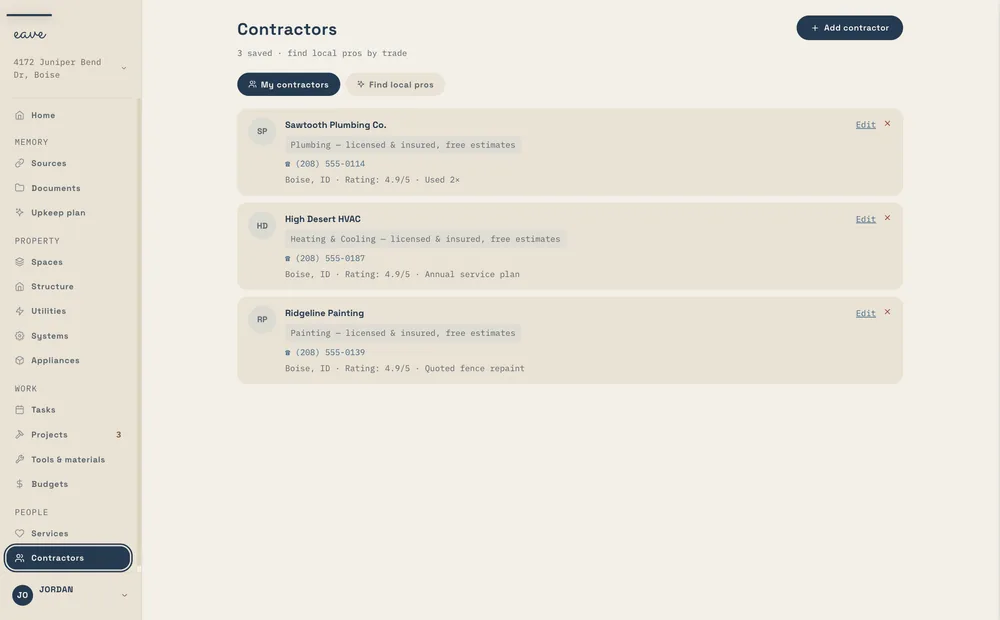
Save or discardIn Contractors, scan the card the plumber left and the pro is added to your list.
ContractorsIn Spaces, Scan room reads the materials, colors, and issues it can see in one photo and fills them in for that room.
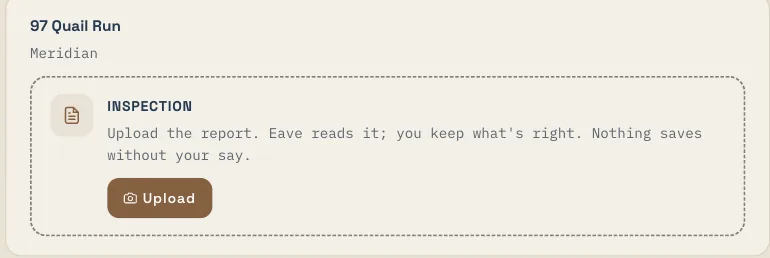
One photoEave reads the systems with their install years and condition, and every finding with its severity. Uncheck anything the seller fixed before it saves.
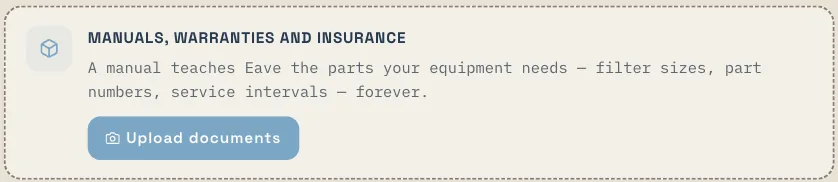
Nothing saves without your sayA manual gives Eave your equipment’s upkeep tasks and how often they’re due; a warranty gives the date it ends; a policy gives the renewal date.
Read into the recordTalk instead of typing. The browser types out what you say, and Capture turns it into a project.
CaptureHome records
A home inspection is the most detailed record of the house anyone will ever write, and it’s usually read once. Upload it and Eave reads it into the systems and findings it describes. You keep what’s right.
Manuals, warranties, and insurance go in the same way, from the Home records group on the Sources page.
IMPORTING AN INSPECTION REPORT →
Pros
Pros come in from a profile link on Thumbtack, Angi, Yelp, or Houzz, or from a scanned business card. They’re saved with their trade, phone, and notes, so the next time the heat goes out you’re not searching old texts.


Public records, automatic
Give Eave the address and it checks public sources on its own, with nothing to link. Each fact keeps its source, so you can see who said so. The deeper version, for any address you’re considering, is Place intelligence.
Utilities
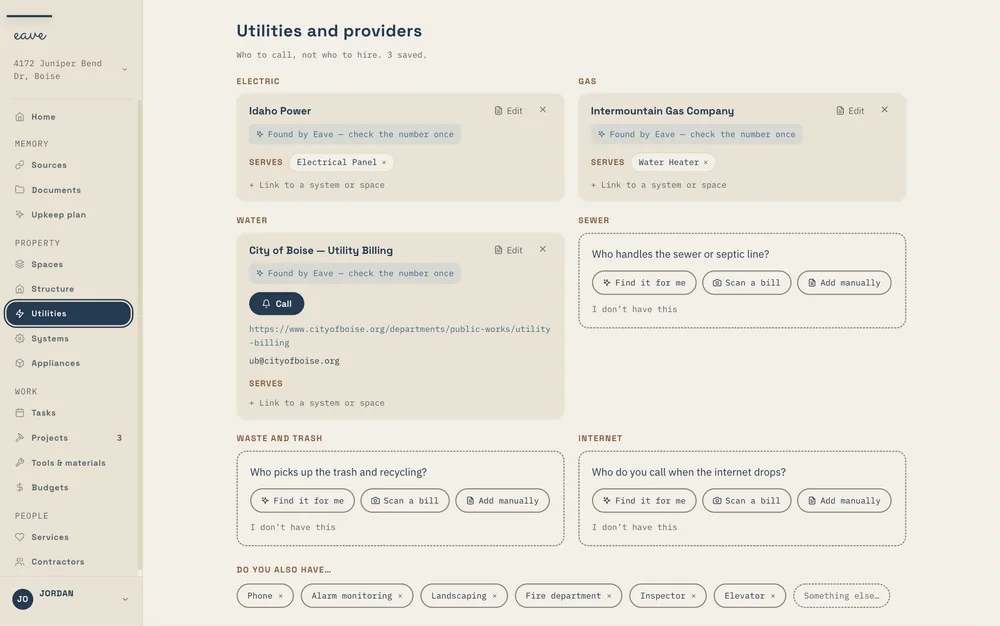
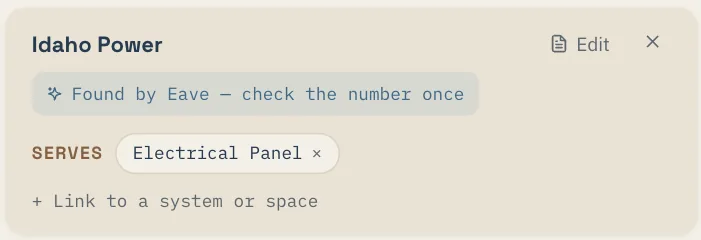
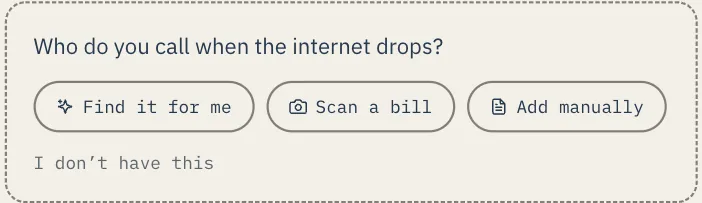
Eave finds the electric, gas, and water providers for the address and marks each one “Found by Eave” so you know to check the number once. What it can’t find, you can have it look for, scan from a bill, or add by hand.
HOW SOURCES WORK →


Same engine, every product
The Sources that fill a homeowner’s record also fill a building’s, and they’re what give a seller something to hand over. What changes is what each product does with it.
A new home starts with three ways in: Gmail, the inspection report, or a receipt. After that, new receipts arrive through the scan and wait in the review queue until you save them.
RESIDENTIAL →Setup takes site plans, service records, and equipment manuals, and utilities are found from the address, so the next person in the role inherits more than a key ring.
COMMERCIAL →The receipts, manuals, and inspection you’ve brought in are already on the systems they describe, and the documented record goes to the buyer at closing when you choose to hand it over.
SELLERS →What Sources won’t do
Gmail is read-only: Eave never sends email for you or changes anything in your inbox. SmartThings is a one-time import of a device list; it can’t turn anything on or off.
Read-onlyUpkeep tasks go out to Google Calendar. Events you add in the calendar don’t come back into Eave.
One wayEave reads the photos you choose to hand it: a receipt, a card, a room. It never scans your camera roll.
Only what you hand itQuestions, answered
The rest of the engine
Each one is useful alone. Together they’re why a receipt in your inbox ends up as a reminder in your plan. See how they fit together →
Get Eave
Connect Gmail, upload the inspection report, or snap one receipt. Free for one home, in any browser, and what Eave finds waits for you to check.
Step by step: Connecting Gmail for receipts · Sources help